User Guide
Access
Go to https://d4k-sdw.fly.dev/

Click on the large button.
Note:
- The version will change as time passes
- The tooling is a beta, expect one or two issues.
Sign Up & Login
You should see a login / sign up screen.

If you do not have an account, please sign up using the available options (email / password, Google, GitHub, Apple or Microsoft - not Office365). Otherwise, login as normal.
Home Page
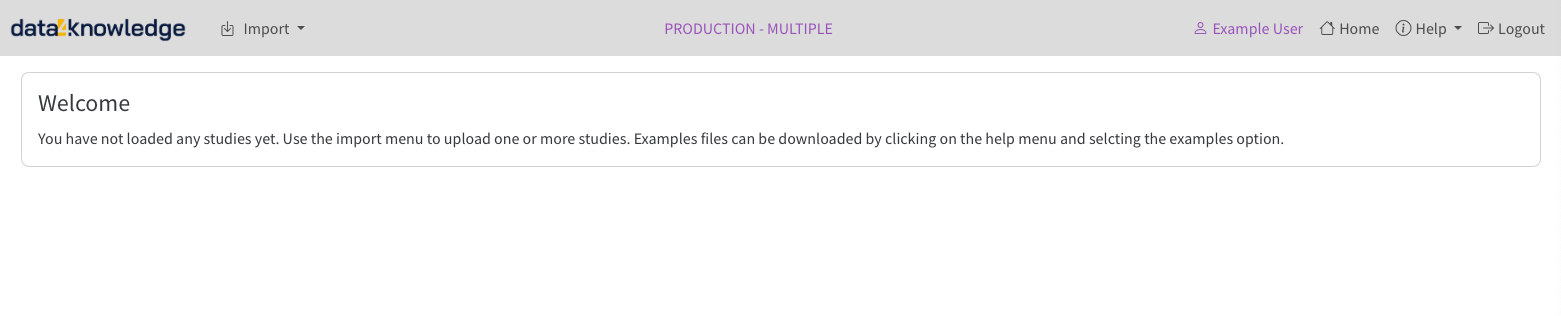
You should see the home page. On first entering the system no data will be loaded. You can always return to the home page by clicking the "Home" menu option (top right) or clicking the logo image (top left).
Import Data
Currently three types of import are supported:
- M11 Word Document (.docx)
- M11 FHIR Message (.json)
- USDM Excel (.xlsx)
Example M11 Word or USDM Excel files are available via the Help -> Examples (top right) menu.
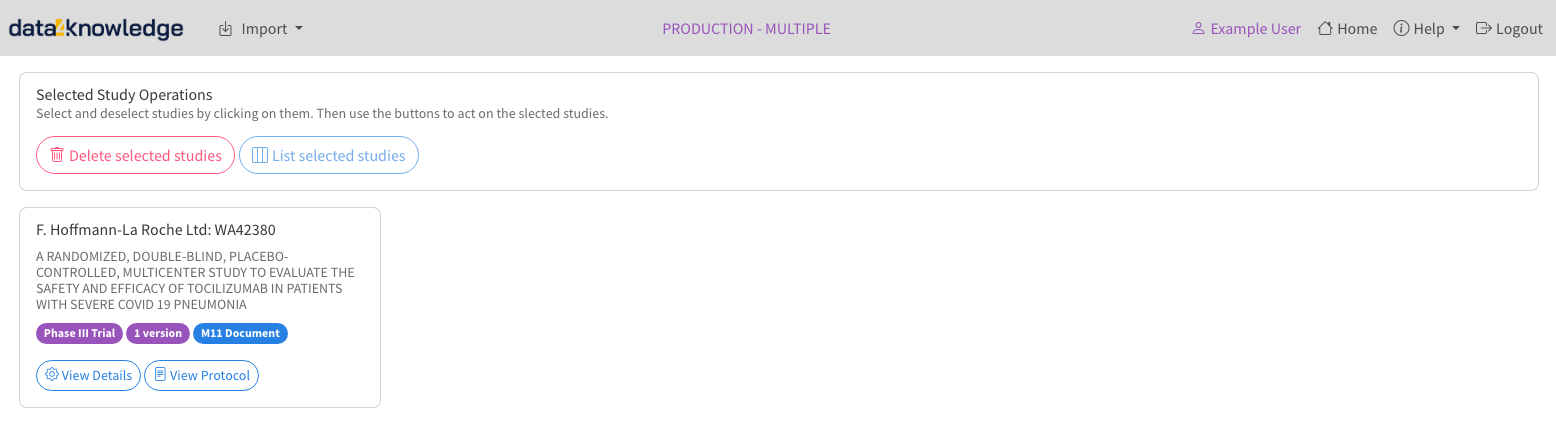
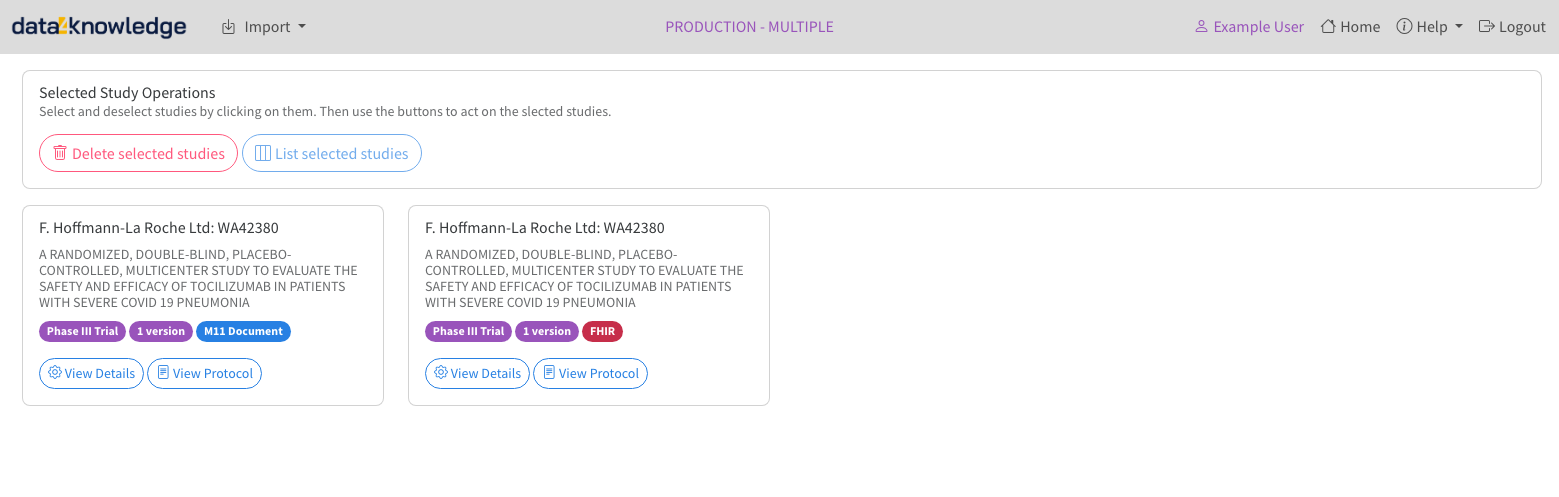
When data is imported the system maintains separate versions for each study and by type of import. For example, Protocol X loaded from a M11 '.docx' file is kept separate from Protocol X loaded from a FHIR JSON file. This allows them to be compared. The coloured pills indicate the type of load (see below).
M11 Protocol in MS Word (.docx) Import
Click on the import menu and select the M11 Document option. The import page will be displayed.
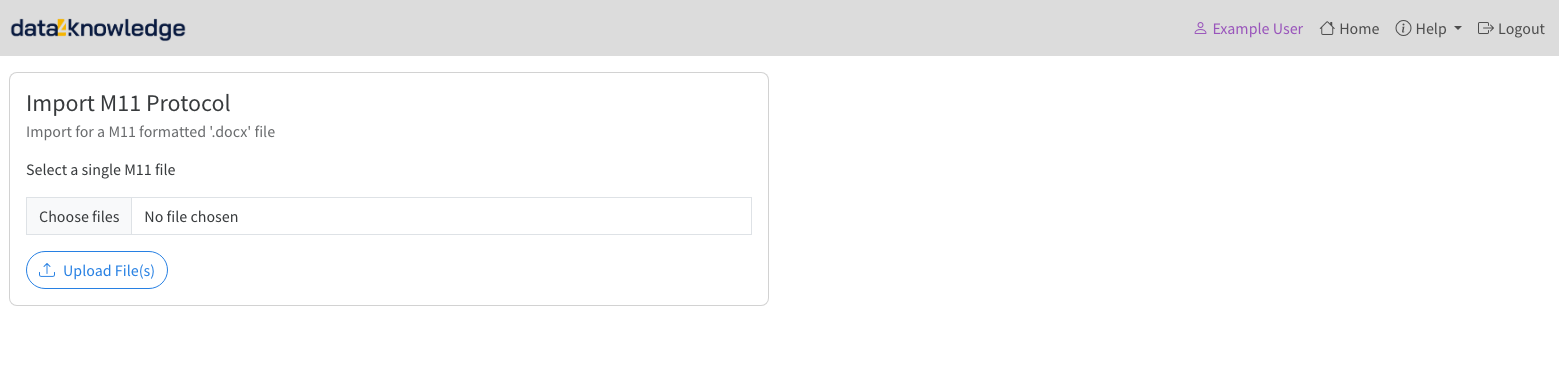
Click "Choose Files" and use the normal file selection mechanism to select a single M11 Protocol Word document.
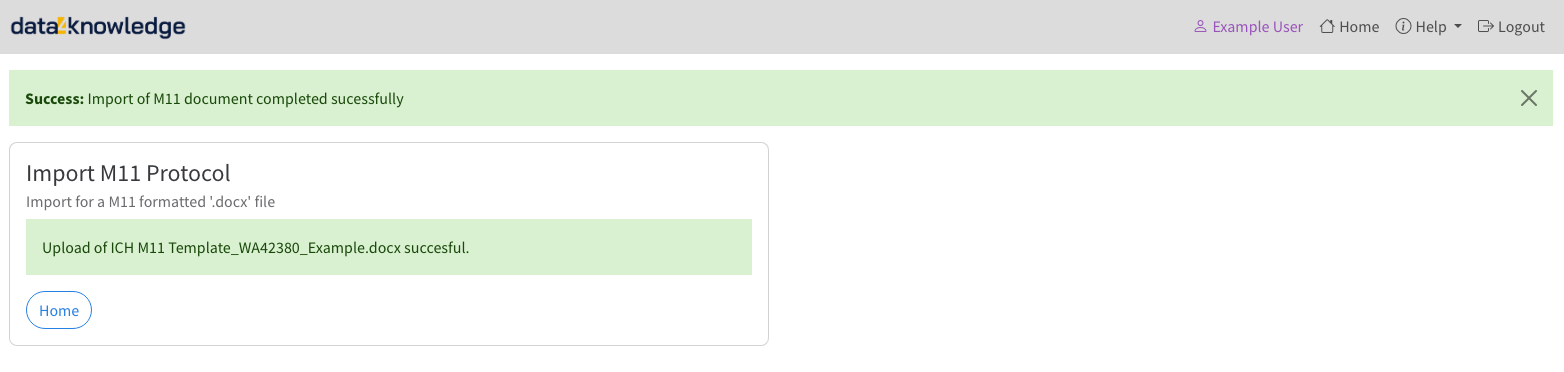
Click "Upload File(s)". The system will respond saying the file is uploaded and then shortly after a "success" message should appear as follows.
Return to the home page. An entry for the file loaded should be present containing high level information about the protocol. Note the blue "M11 Document" load type indicator.
M11 Protocol in FHIR V1 Message (.json) Import
Click on the import menu and select the M11 FHIR v1 option. The import page will be displayed.
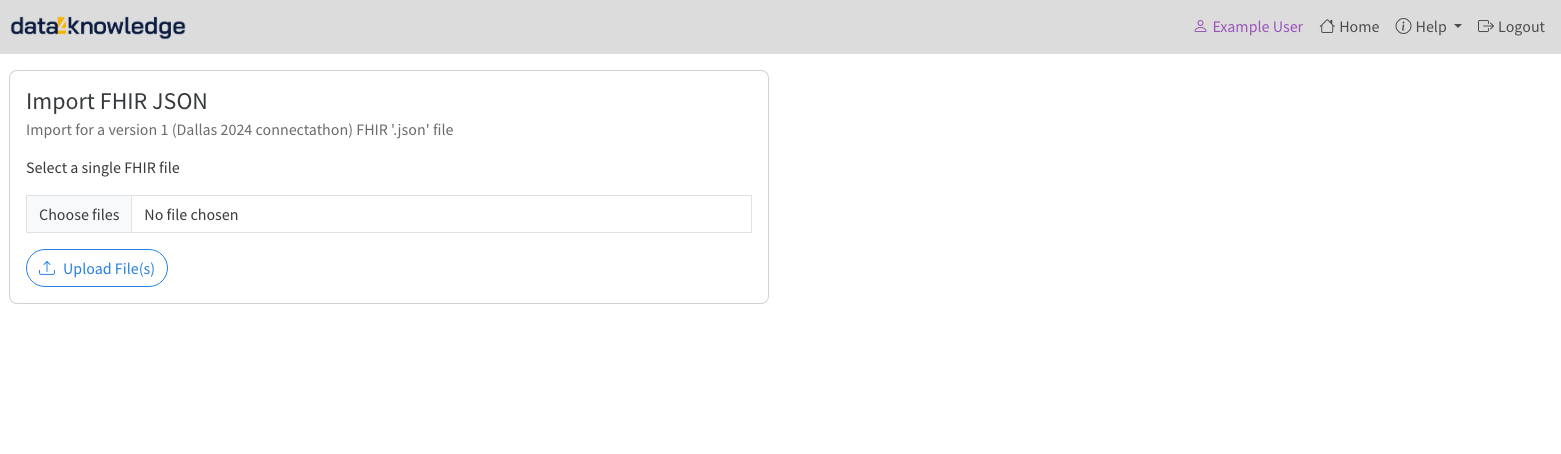
Click "Choose Files" and use the normal file selection mechanism to select a single M11 FHIR JSON file.
Click "Upload File(s)". The system will respond saying the file is uploaded and then shortly after a "success" message should appear as follows.
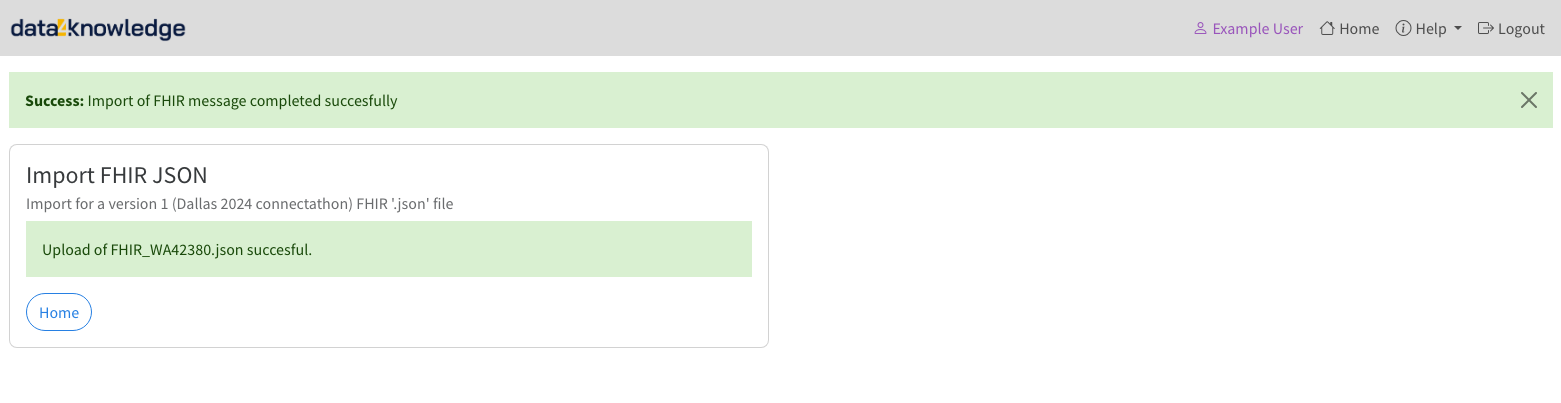
Return to the home page. An entry for the protocol loaded should be present. Note the red "FHIR" type indicator.
USDM in MS Excel (.xlsx) Import
Click on the import menu and select the USDM Excel option. The import page will be displayed.
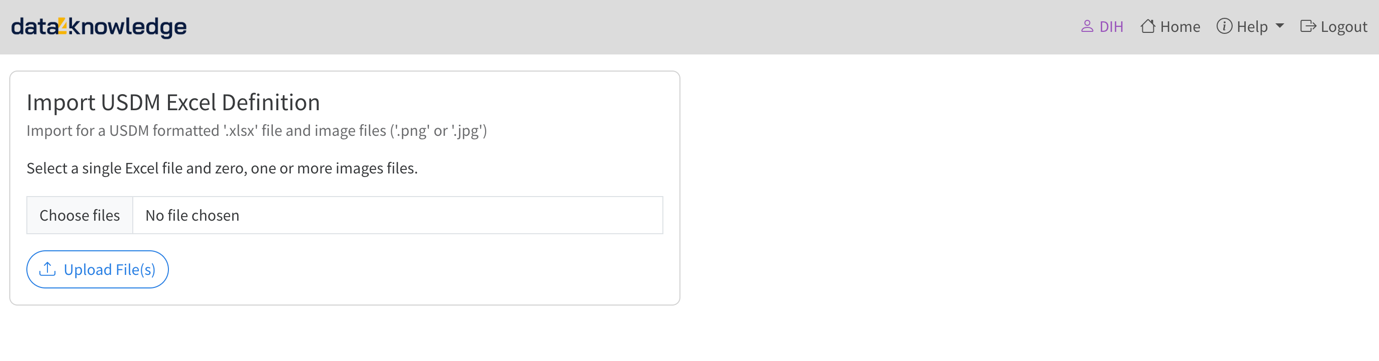
Click "Choose Files" and use the normal file selection mechanism to select a single USDM Excel file and any associated image files required to render the protocol document.
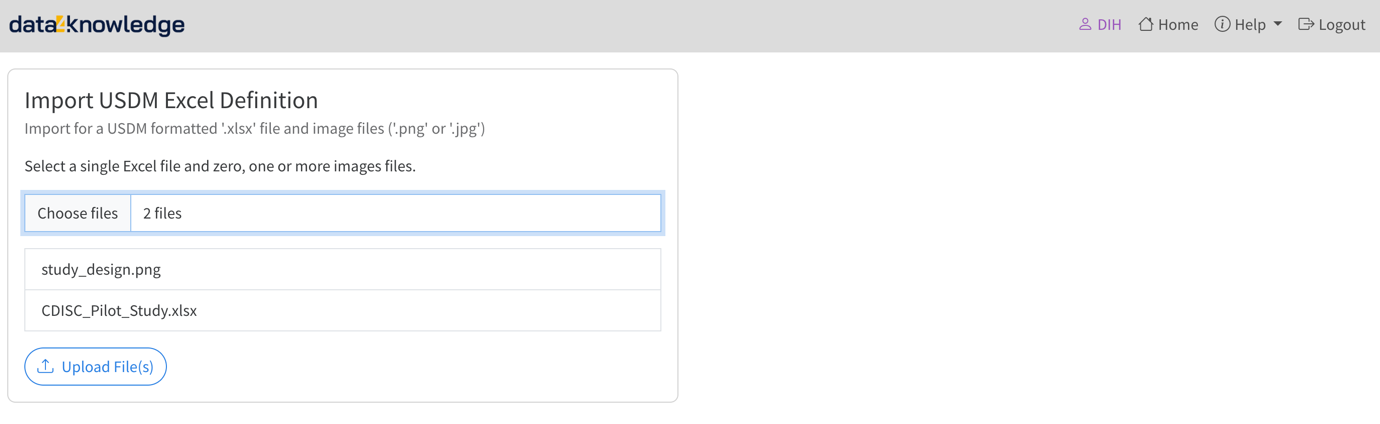
Click "Upload File(s)". The system will respond saying the file is uploaded and then shortly after a "success" message should appear. Return to the home page.
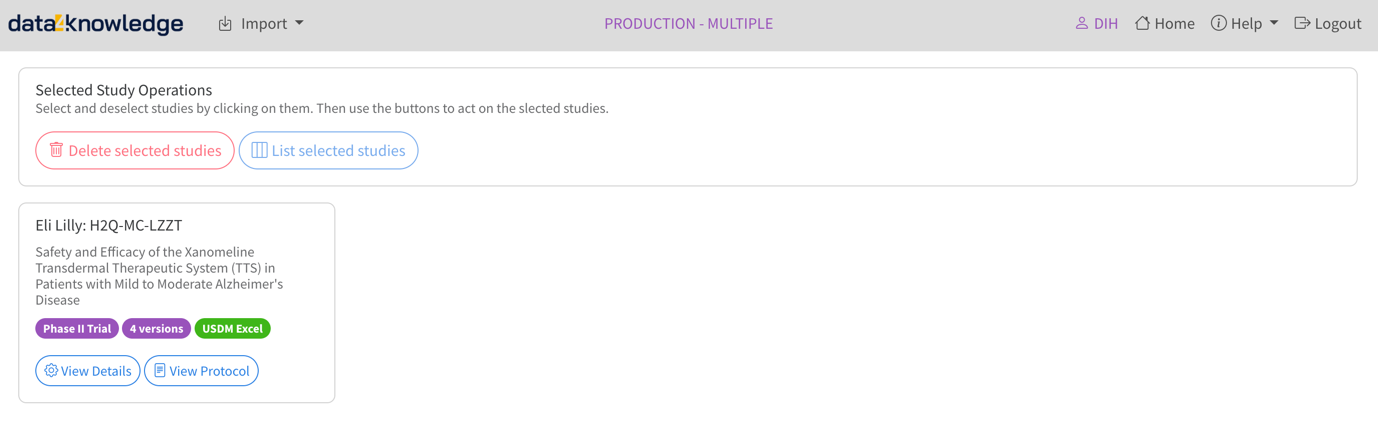
Side By Side Page
Select two or more protocols by clicking on the relevant items (anywhere in the boxes), you should see a blue border around the selected items. Click again to de-select, it is just a toggle.
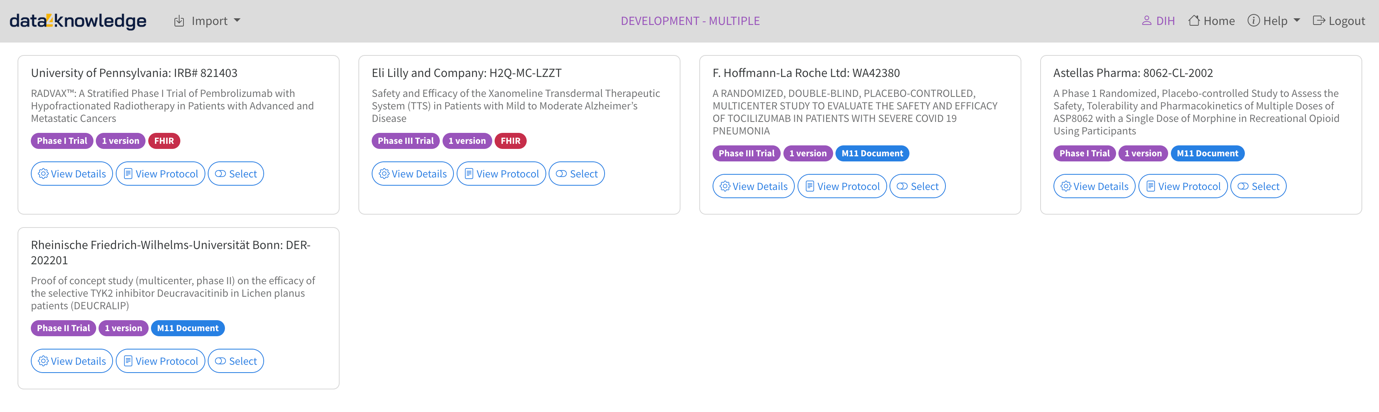
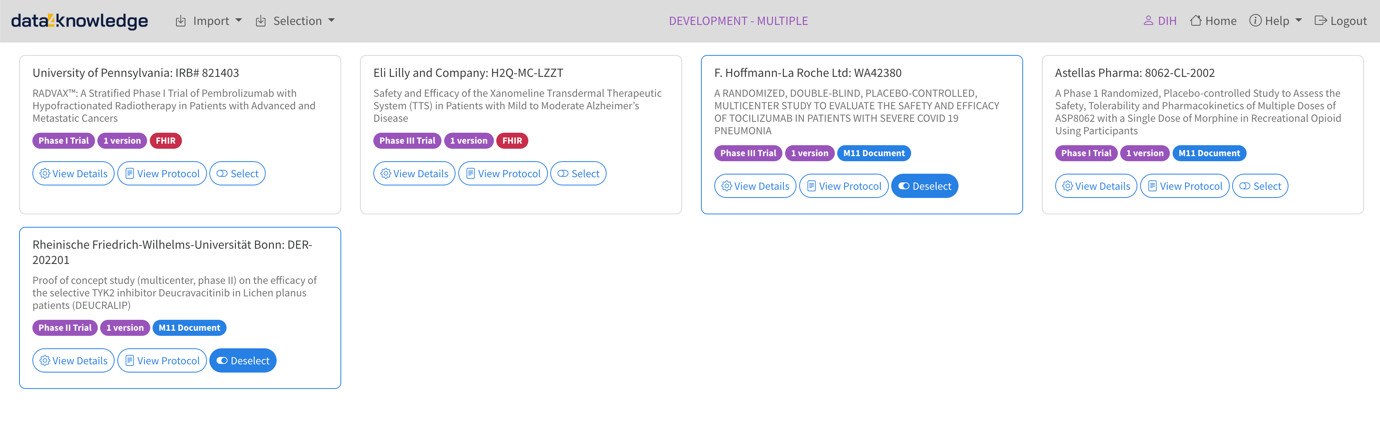
Click the "List Selected Studies" button. You should see something like the following.
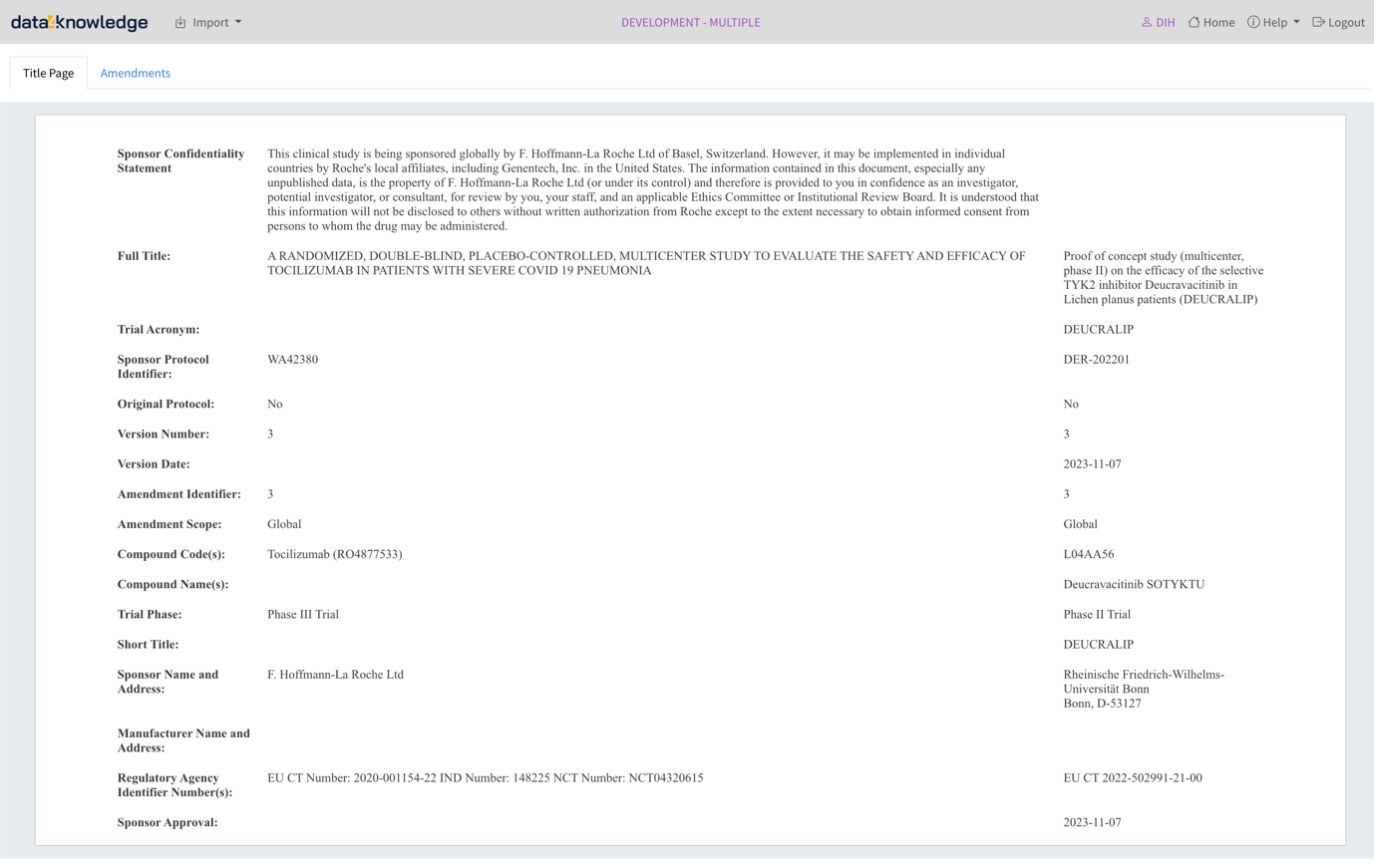
Click on the Home button (top right) or the logo (top left) to get back to the home page.
Details Page
From the home page, clicking the "View Details" button for a study will get you to the details view. Use the view menu at the top to see the other views.
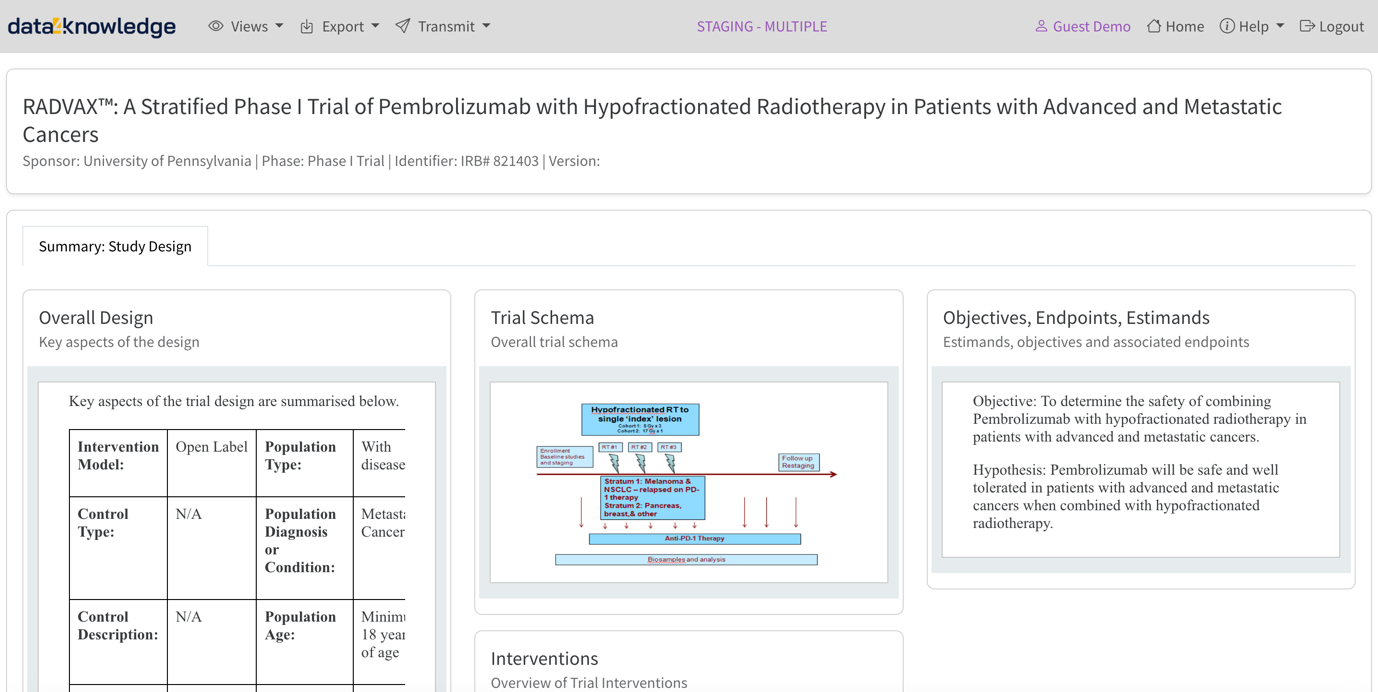
Export
The Export menu on the details view page allows for a study to be exported as a
- FHIR v1 message in JSON format
- USDM model in JSON format
- The protocol rendering as a PDF
The downloads work in the standard way.
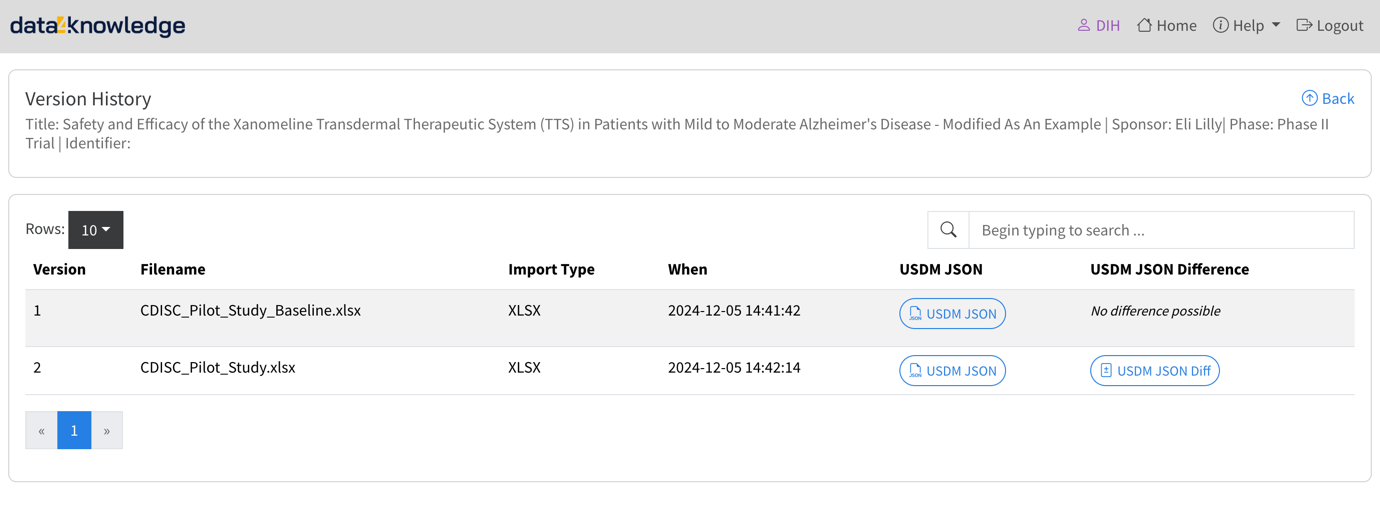
Version History and Differences
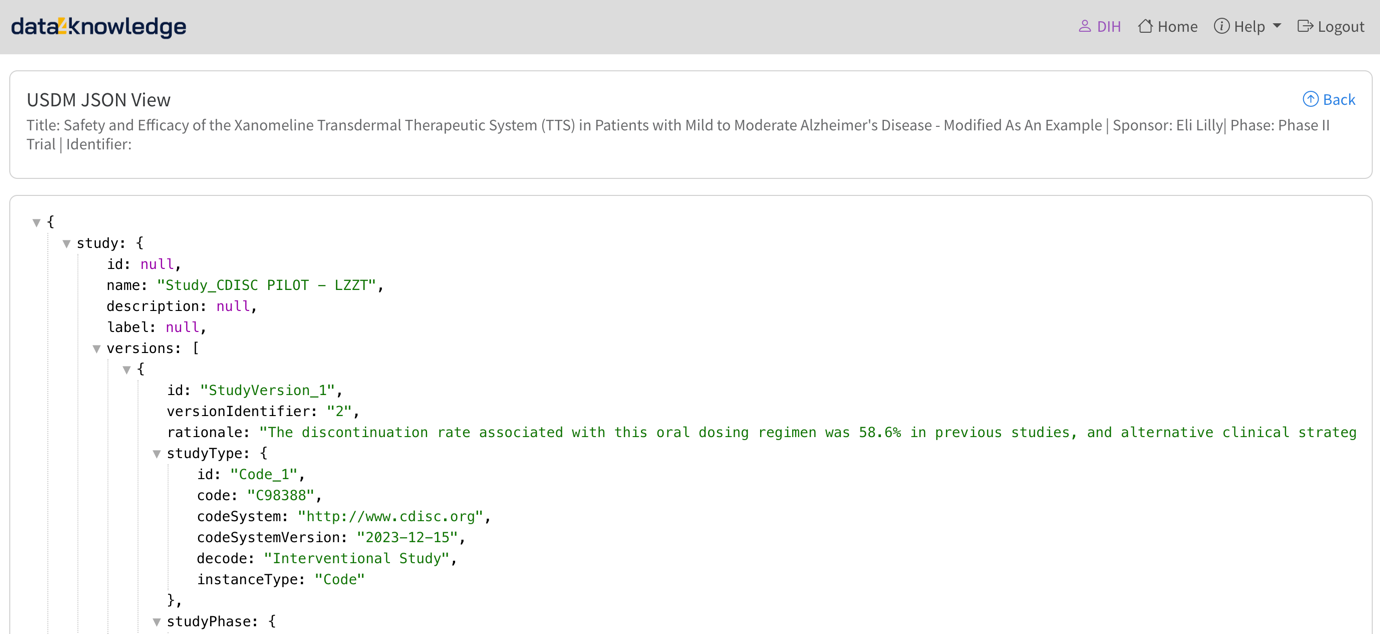
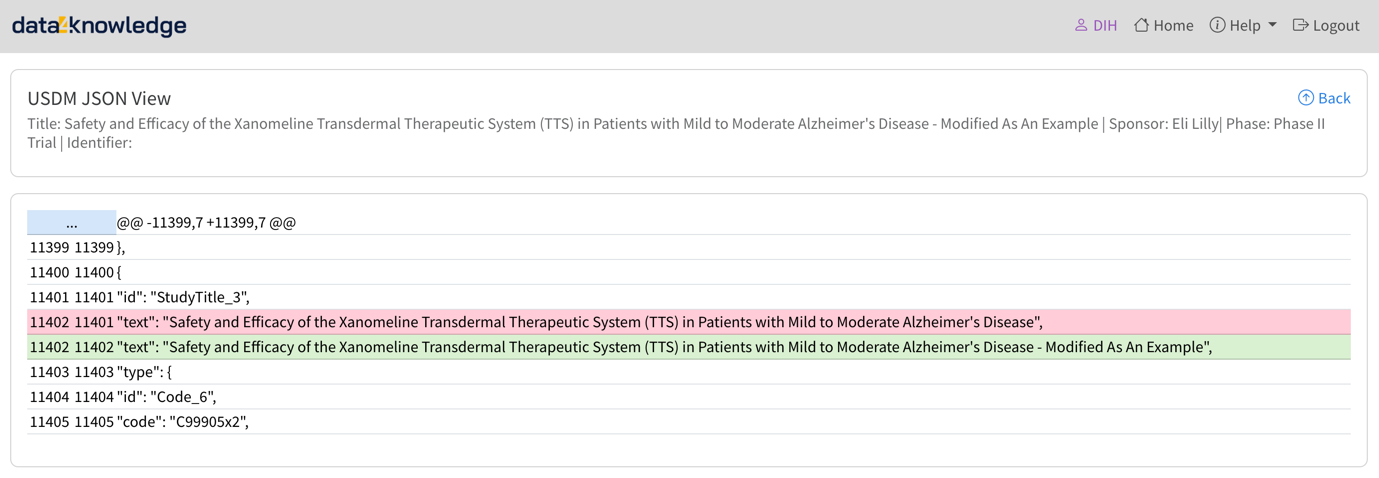
The version history for a given study / protocol and import type can be viewed via the details page. The USDM JSON can be viewed and, if multiple versions are stored, the differences can be inspected.